Fulfilments
A compliance record can be considered fulfilled when it has been reviewed and deemed to meet all of its obligations from a compliance standpoint.
The OurCompliance system allows users to submit fulfilments for compliance records and attach documents or images to support the fulfilment.
Compliance record history
For a given asset, select the Compliance Records tab.
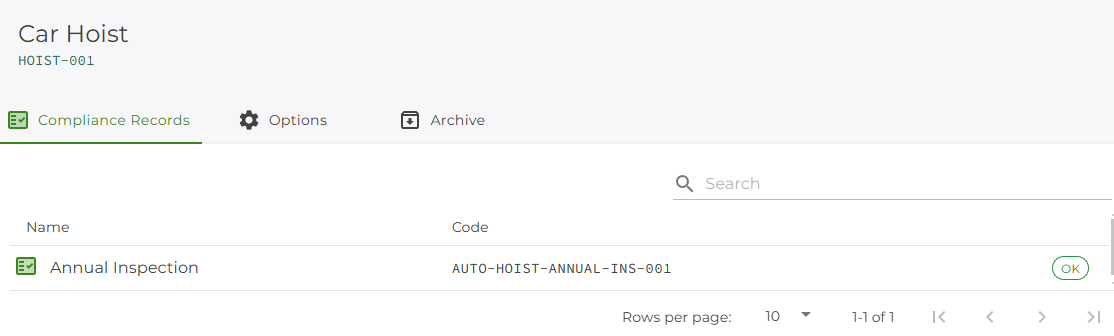
Locate an existing compliance record and click on it.
Select the History tab. You should now see a timeline of the compliance record history.
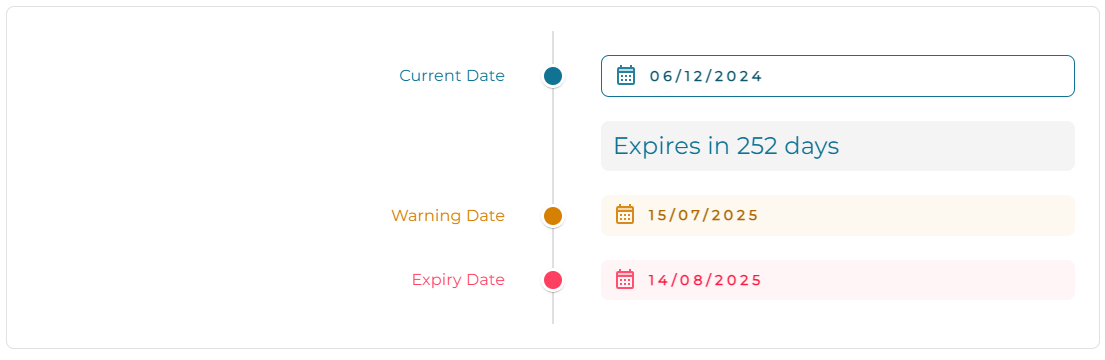
The Current Date is today's date.
The Warning Date is the date at which renewal / expiry is imminent. You may have configured a custom warning range for this record type, which will be reflected here.
The Expiry Date is the date at which this record is due to expire.
Adding a fulfilment
For a given compliance record, select the Options tab.

Select Add a fulfilment to this record.
Enter the fulfilment details where applicable:
Fulfilment Date (required) - the date that the record was fulfilled. Typically, this will be the date an inspection was performed, for example, or the date that a compliance certificate was received. You can put a past date into this value to reflect this.
Add any additional information you would like to keep track of in the Notes section.
You can attach supporting documents or images to this fulfilment by clicking the Attach Files button.
If you need to remove an attached file, locate it in the list of attachments and click on the delete icon
 .
.
When you are ready to add the item, click the Update button.
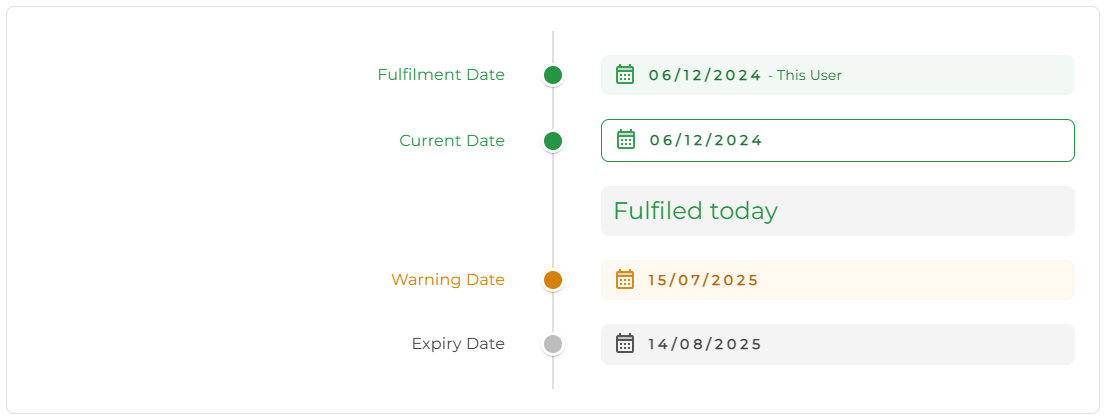
If successful, you should now be returned to the History tab for this record. Note now how the history has been updated to reflect the new fulfilment status.
Deleting a fulfilment
Under the given compliance record, navigate to the Fulfilments tab.
You should see a list of all the current fulfilments for this record.
Locate the entry you wish to delete and click on the delete icon
.You will be presented with a deletion confirmation; select the OK button to confirm deletion of the entry.