Compliance records
A compliance record is an auditable compliance entry against a given business asset.
A given asset may require levels of compliance against a multitude of standards - internal / external, local / state / national government, internationally recognised compliance bodies versus in-house auditing and record-keeping.
The OurCompliance platform aims to be a single source-of-truth for all of your business compliance by managing these compliance records against all of your business assets.
Adding your first compliance record
A compliance record is added against an asset - you will need to create an asset in order to start adding compliance records.
After adding your first asset, you will be presented with an empty list of compliance records for it.
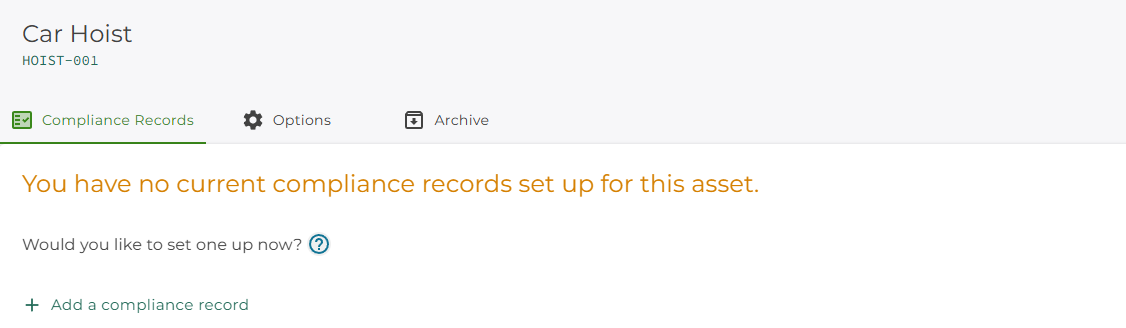
Click on the + Add a compliance record button to get started.
Selecting the effective date of the compliance period
In most cases, you will be entering compliance records as you use the system day-to-day, in which case you can leave the Effective Date of the compliance record as today's date
Keep the checkbox The compliance period for this asset commences as of today checked in order to do this.
In cases where you wish to enter retroactive compliance records into the OurCompliance system, uncheck the checkbox and select an Effective Date from the date picker, to the date value you want to define as the starting date for this compliance record.
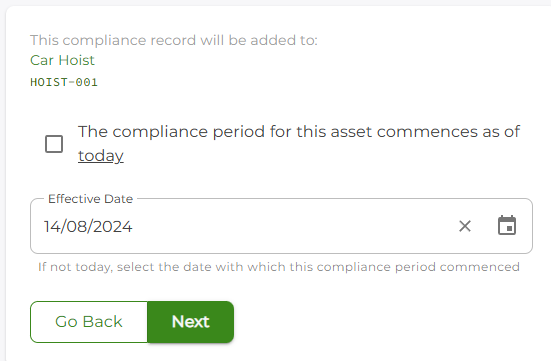
Click on the Next button to continue.
Selecting the compliance record type
Use the Compliance Record Type box to type in a search term; relevant entries will appear in the results.
Additionally, if you have specified industry details for your business, you should see some recommendations that may be useful in selecting the type of compliance record you wish to track.
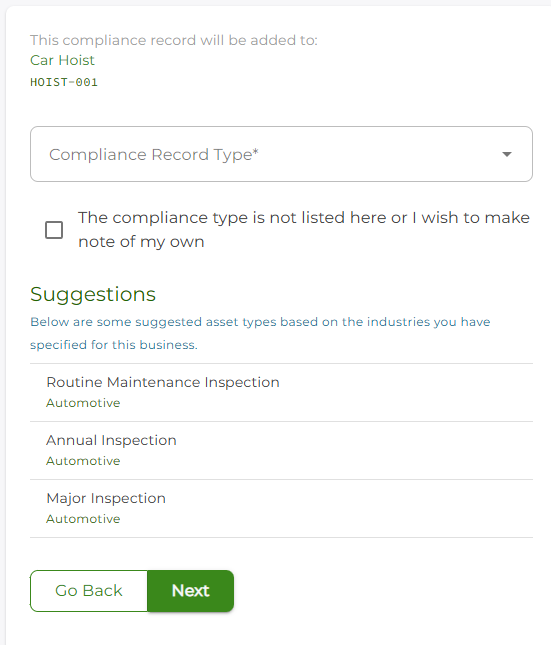
In our example, some relevant asset types from the Automotive industry appear by default.
Check the The compliance type is not listed here or I wish to make note of my own checkbox if you would like to add a custom compliance record type.
Once you have selected a type, you will then be asked to provide more details.
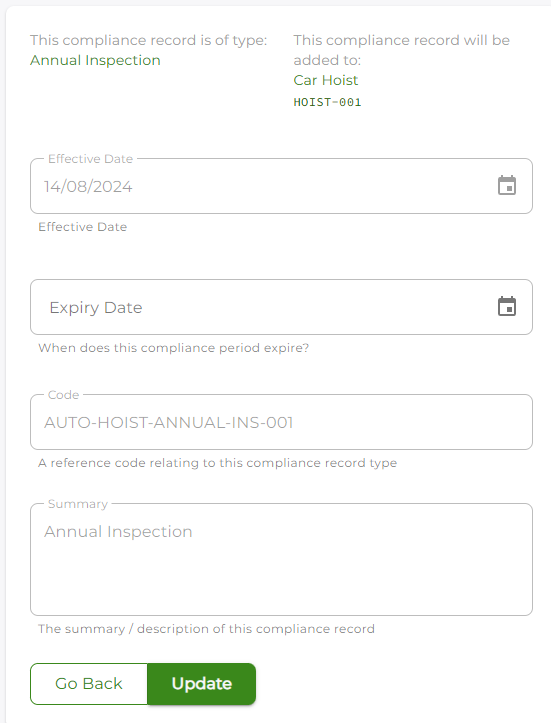
Enter the record details where applicable.
Expiry date (required) - the end date of the compliance period. When the current date is after this date, this compliance record is considered to have expired and thus possibly non-compliant.
When you are ready to add the item, click the Update button.
Entering a custom compliance record type
There may be situations where you cannot find a listed compliance record type, or you want to track an ad-hoc reminder or inspection against an asset.
When selecting the compliance record type, check the The compliance type is not listed here or I wish to make note of my own box, and click the Next button.
You will be presented with the compliance record details form, however, this time, besides the Expiry Date, you will be prompted to complete the following fields:
Code (required) - give this record type a meaningful code; generic codes are better for re-usability.
Summary (required) - describe this record type in a readable manner.
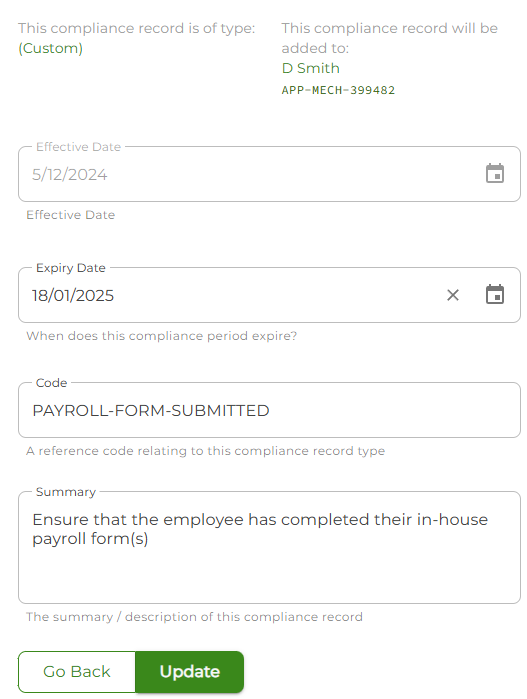
When you are ready to add the item, click the Update button.