Assets
Assets are the primary concern of a business. A user managing compliance for their business will want to ensure that compliance records are up to date and documented for all of their applicable assets.
An asset can be anything you want to link compliance records to - from a piece of equipment, a physical location, a person, a computer, or a vehicle.
In the OurCompliance system, assets are organised under asset groups. You can add an asset to any level of an asset group hierarchy, even those that already contain other asset groups.
Adding your first asset
After adding your first asset group, you will be presented with an empty list of assets for this group.

Click on the + Add an asset button to get started.
Selecting the asset type
Under the Search section, use the Asset Type search field to type in a search term; relevant entries will appear in the results.
If you have specified industry details for your business, you should see some recommendations under the Suggestions section that may be useful in selecting the type of asset you wish to track.
If you have added other assets to the system, those asset types will appear under the Recently added section, for convenience.
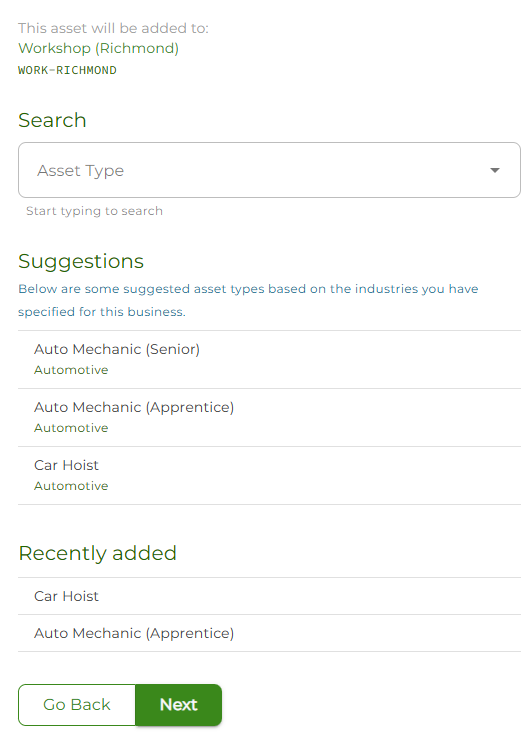
In our example, some relevant asset types from the Automotive industry appear by default.
Once you have selected a type, you will then be asked to provide more details.
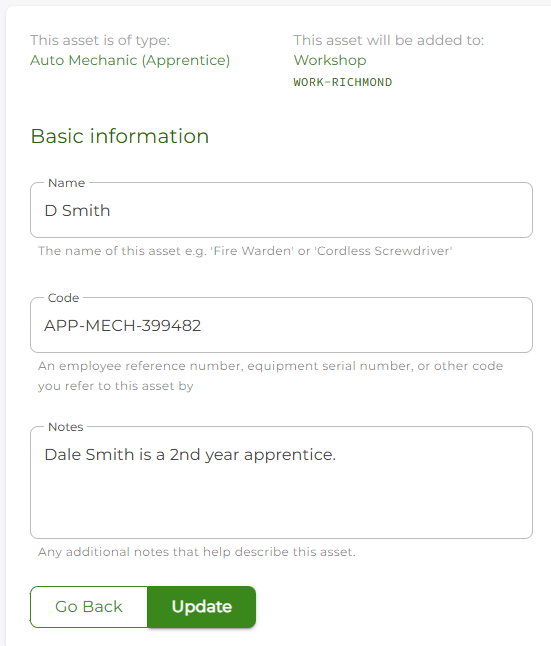
Enter the asset details where applicable.
Name (required) - the name of the asset.
Code (required) - an applicable code for this asset.
Add any additional information you would like to keep track of in the Notes section.
When you are ready to add the item, click the Update button.
Editing an existing asset
Under the given asset dashboard, navigate to the Options tab.

Select Edit this asset.
You will be able to edit any of the fields; click the Update button to apply the changes.
Moving an asset
You may need to move an asset to another group.
Locate or search for the asset you want to move, and click on the record.
Under the asset dashboard, navigate to the Options tab.
Select + Move this asset.
Under the Select Group options, select the name of the new parent group for this group.
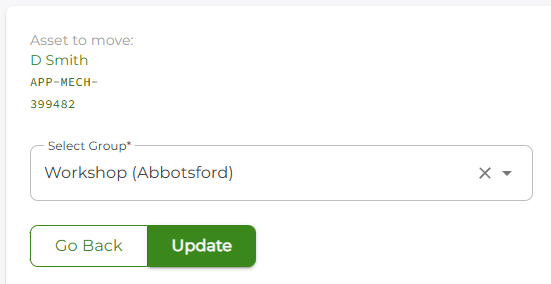
If required, you can move the group all the way up to the business 'root' level by checking the box Move this collection to the business root level.
The Select Group box is not required if you do this.
Once you have chosen the new parent group, click the Update button to complete the move.