Asset groups
Underneath your business entity, you will want to organise your compliance assets into logical groups.
As an example, our My Auto Shop business may have the following structure - grouped first by department and then sub-grouped by location:
It may make more sense, depending on the structure of your business, to group things differently - in this example, group by location and then sub-group by department:
How you configure the grouping of assets is entirely up to you.
Adding your first asset group
After adding your first business, you will be presented with an empty list of asset groups.

Click on the + Add a new asset group button to get started.
Adding the asset group details
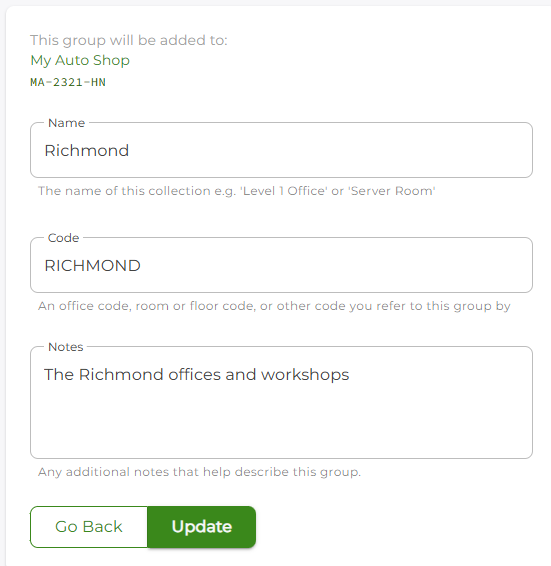
Enter the asset group details.
Name (required) - the name of the group.
Code (required) - a code for this group, unique across your business.
Add any additional information you would like to keep track of in the Notes section.
When you are ready to add the item, click the Update button.
Editing an existing group
Under the given asset group dashboard, navigate to the Options tab.

Select Edit this group.
You will be able to edit any of the fields; click the Update button to apply the changes.
Adding an asset group to an existing group
As your business grows or changes, you may need to add more groups to existing groups.
In the above example, a new sales office may open in Richmond.
Under the given business dashboard, navigate to the Groups tab.
Locate or search for the asset group you want, and click on the record.
Under the asset group dashboard, navigate to the Options tab.
Select + Add a group to this group.
You should see a description of where this new group will be added to:

Add the (new) group details as per the standard form.
Click Update to save the changes.
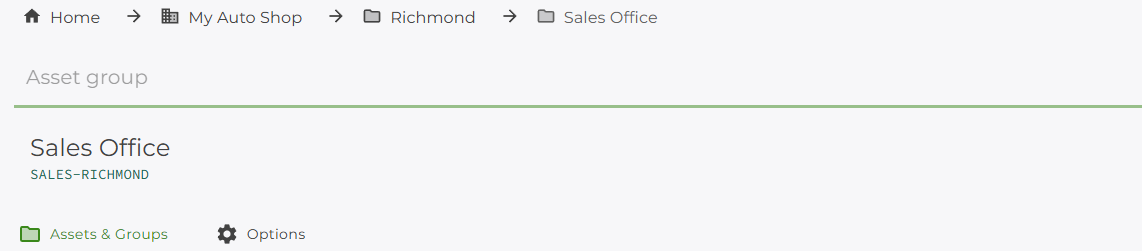
You should now be able to see the hierarchy you have created for the asset groups in the top navigation bar.
Moving an asset group
You may need to move an asset group to another group, or to the root business group.
In the above example, the business has grown state-wide, and we want to group all of the asset groups by state.
We have created a new asset group Victoria and want to move all of our Victorian asset groups under this group.
Under the given business dashboard, navigate to the Groups tab.
Locate or search for the asset group you want to move, and click on the record.
Under the asset group dashboard, navigate to the Options tab.
Select Move this asset.
Under the Select Group options, select the name of the new parent group for this group.
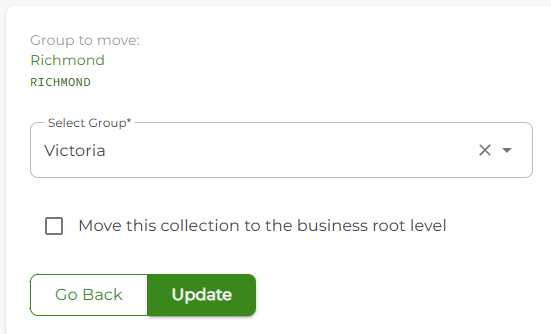
If required, you can move the group all the way up to the business 'root' level by checking the box Move this collection to the business root level.
The Select Group box is not required if you do this.
Once you have chosen the new parent group, click the Update button to complete the move.